
Help Request explained
Every signed in user can send a “Help Request” to the platform.
This is turned on by default.
(If you want to turn this off please contact your project manager. )
The feature is located in the dropdown on the right side of the header.
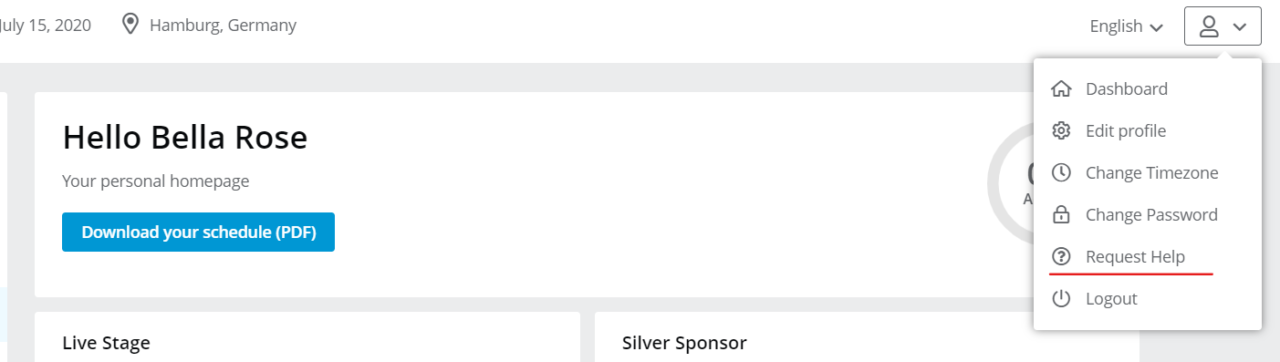
How to receive a help request
Messages that are sent with this feature will go “to the system”.
A “New Help Request” Notification is sent to the administrator email adress
(NOT every admin account mail adress).
Every Admin is also informed about help requests in a backend dashbox.
If you want additional admins to recieve a mail notification, your project manager can set this up.
It would also be possible to create an admin account that can only be used to answer Help Requests.
How to Answer Help Requests
- In the backend go to Attendee Management -> Answer Help Requests.
- You will be shown all new help requests. If you want to see requests the have been answere/solved, click on “answers” at the top.
- Click on “the subject” of a help request to open and read it.
- Click on answer.
- Now you can type your replay.
- Click answer again to send it. The reply is send to the users e-mail adress.
- The help request is moved to the answers section, including the answer.
- If the issue has been solved and no reply is neccesary click on mark as solved.
- You can add some notes on how it has beend solved.
- Click save to move the help request and the notes to the answers section.