Meeting Configuration
The three meeting scheduling systems – Pre Scheduled Appointment System (PSA), Reverse PSA and One Click – can be customized to accommodate event-specific setup needs and preferences.
Below is a list of configuration settings to help determine the best arrangement for your event.
This is also to demonstrate the possibilities of the meeting system.
Most configurations can be set or toggled true/false under Event Settings -> Event Configurations-> Meetings
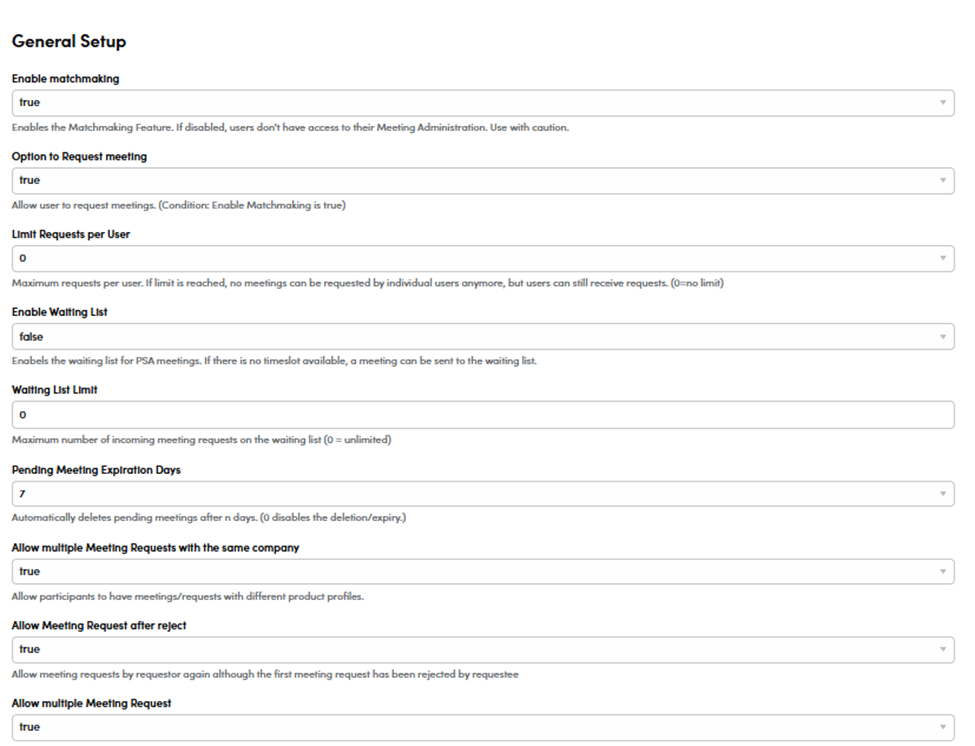
General Meeting Setup Configurations:
-
Enabling Meeting Request Function: Turn the meeting request function on or off.
-
User Category Requestor Status: Specifying which user categories are allowed to submit meeting requests. (see The Meeting Matrix).
-
Requestee Type: Specifying whether the meeting request should be for a company, delegate, or product.
-
Number of Requests Limit: The maximum number of meeting requests allowed per user.
-
Waiting List Limit: The maximum number of incoming meeting requests allowed on the wait list.
-
Pending Meeting Expiration Days: Automatically deleting pending/non-accepted meetings after a specified number of days ( or moving them to the wait list).
-
Expired Requests Moved to Waiting List: Automatically moving expired request to a wait list (instead of deleting them).
-
Allowing Meeting Request after Reject: Allowing consecutive meeting requests by requestor, despite previous requests being rejected by requestee.
-
Allowing Multiple Meeting Requests with the same Company: Allowing users to have meetings/requests with different delegates or product profiles from the same company.
-
Allowing Multiple Meeting Requests: Allowing users to have more than one meeting/request with each other.
-
Fixed Assigned Tables: Specifying if there will be a specific matchmaking area where the meetings will take place or whether companies are assigned to a fixed table.
-
MyMatch Feature: Enabling the MyMatch feature, suggesting prospective meeting partner matches based on user profile keywords.
-
Open/Close My Agenda: Toggles if My Agenda (attendee personal meeting schedule) is visible.
Please note:
Not all configurations are available to Event Admins.
Not all configurations apply to all systems.
Your Converve Project Manager can assist in setting up the proper configurations.
You can learn more in the article Meeting Configuration for Event Admins.
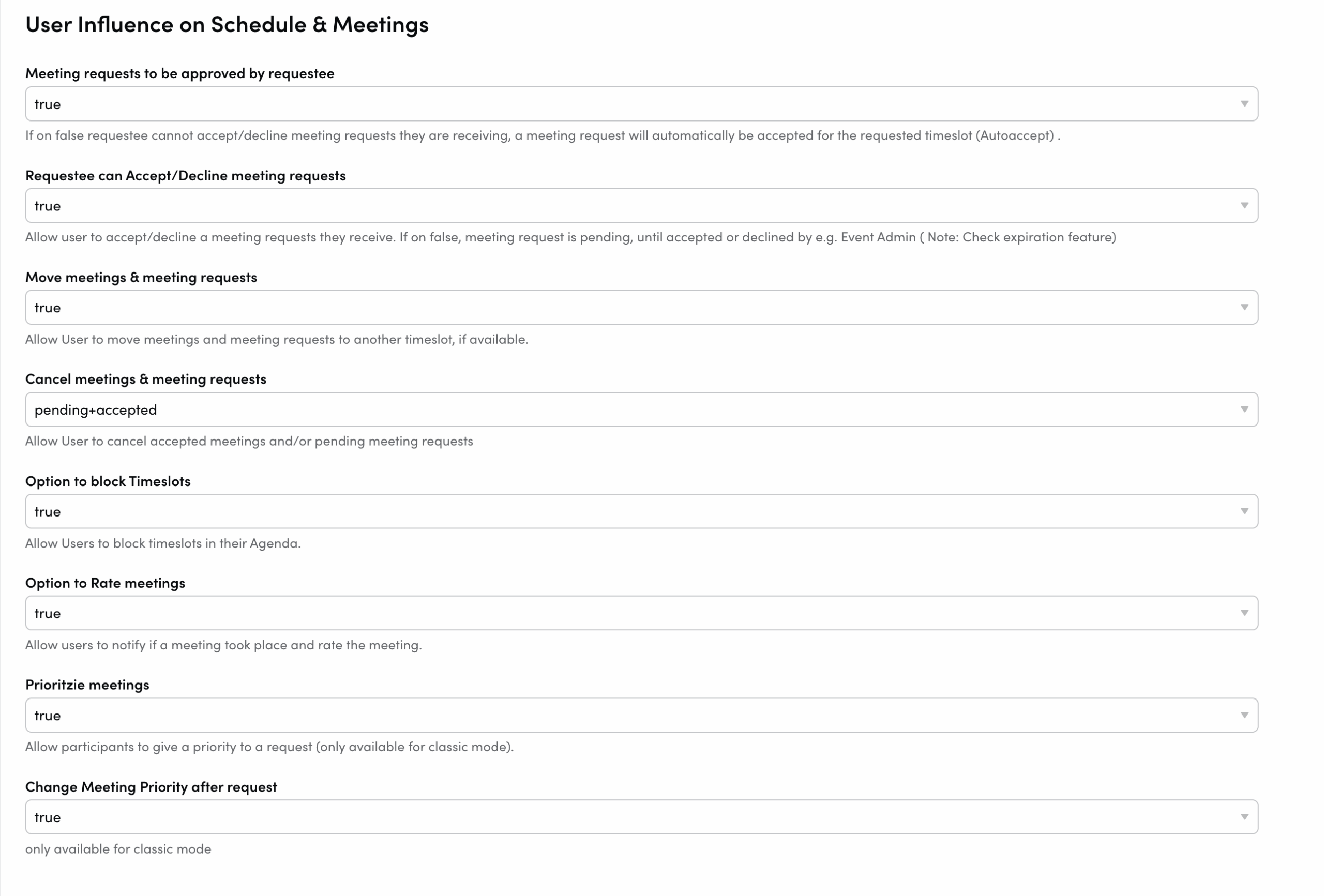
User Influence on Schedule & Meetings Configurations
-
Accepting/Declining Meeting Requests: Allowing requestee to accept or decline incoming meeting requests.
-
Move Meetings & Meeting Requests: Allowing users to move meetings to another timeslot, if available.
-
Cancel Meetings & Meeting Requests: Allowing users to cancel accepted meetings and/or pending meeting requests.
-
Option to Block Timeslots: Allowing users to block timeslots in their My Agenda.
-
Option to Rate meetings: Allowing users to fill out a feedback survey about a meeting that is available for organizers.
-
Option to Prioritize meetings: Allowing users to prioritize requests – A, B, C priority, in order of scheduling priority.
Only available for the One Click System.
Please note:
Not all configurations are available to Event Admins.
Not all configurations apply to all systems.
Your Converve Project Manager can assist in setting up the proper configurations.
You can learn more in the article Meeting Configuration for Event Admins.
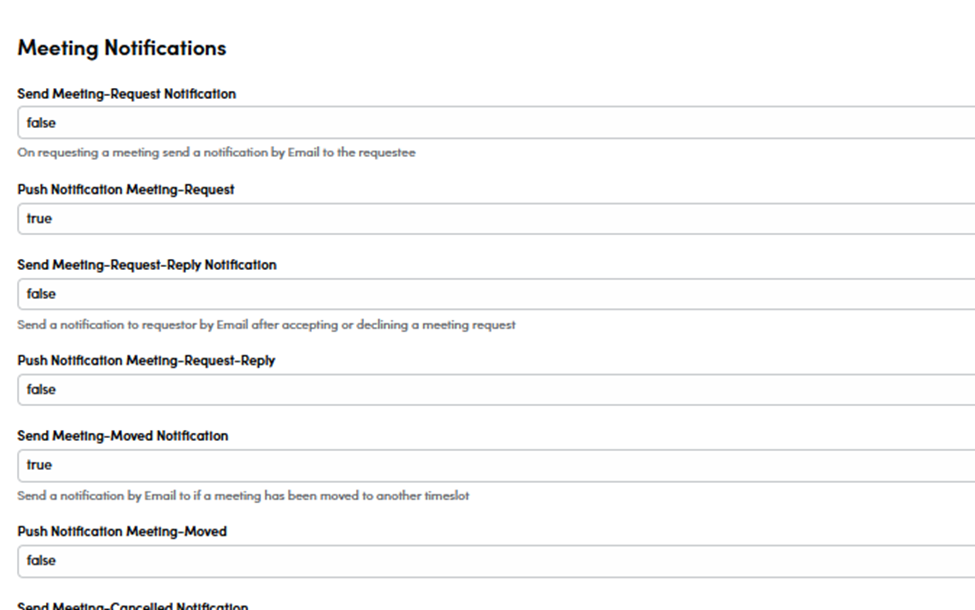
Meeting Notifications Configurations
Enabling email and/or push notifications for the following scenarios:
-
New Meeting Request Notification to requestee.
-
Accepted/Declined Meeting Request Notifications to requestor.
-
Moved Meeting Notification.
-
Cancelled Meeting Notification.
-
Meeting Request Expired Notification.
-
Pending Meeting Request Notification to requestee if meeting request is still pending after a specified number of days.
-
Meeting Request Notifications to Admin.
Please note:
Not all configurations are available to Event Admins.
Not all configurations apply to all systems.
Your Converve Project Manager can assist in setting up the proper configurations.
You can learn more in the article Meeting Configuration for Event Admins.