Steps
The Converve platforms offer the capability to send messages to other attendees through a built-in messaging system.
Steps
- Log in to the event platform using your login credentials [How to Log In], as registered in the system (email address and password).
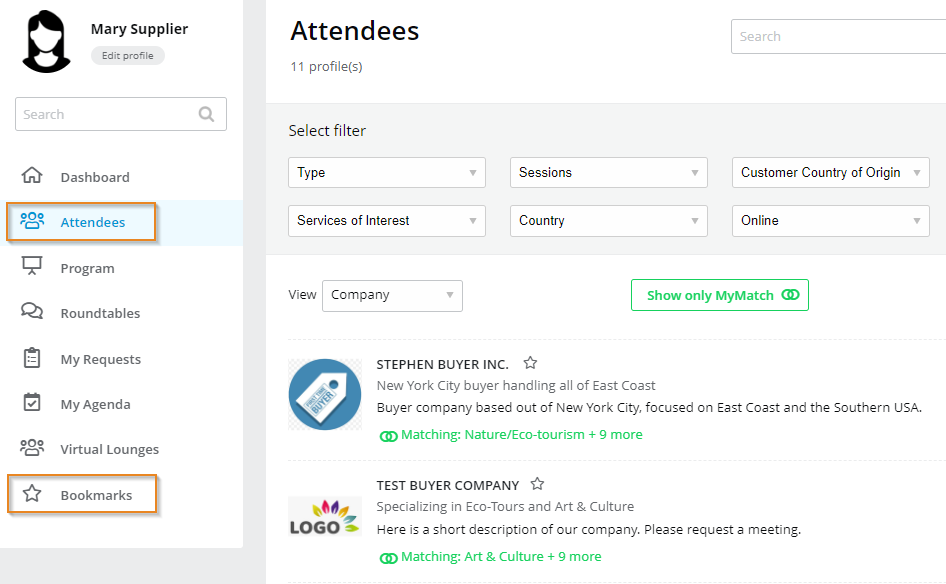
- From the Dashboard left-side menu, click Attendees to display a list of attendee profiles [How to Look Up, View and Navigate Attendee Profiles].
- If you have Bookmarked attendees ahead of time [How to Bookmark an Attendee], you can also click Bookmarks from the Dashboard menu, to display your bookmark short-list.
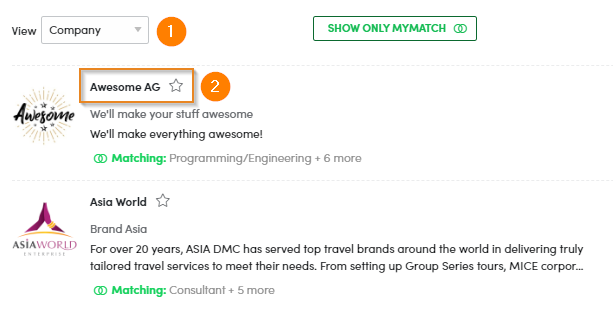
- Locate the participant on the attendee list to whom you would like to send a message, then click the Company Name or Person’s Name (View sorted by Company vs Person).
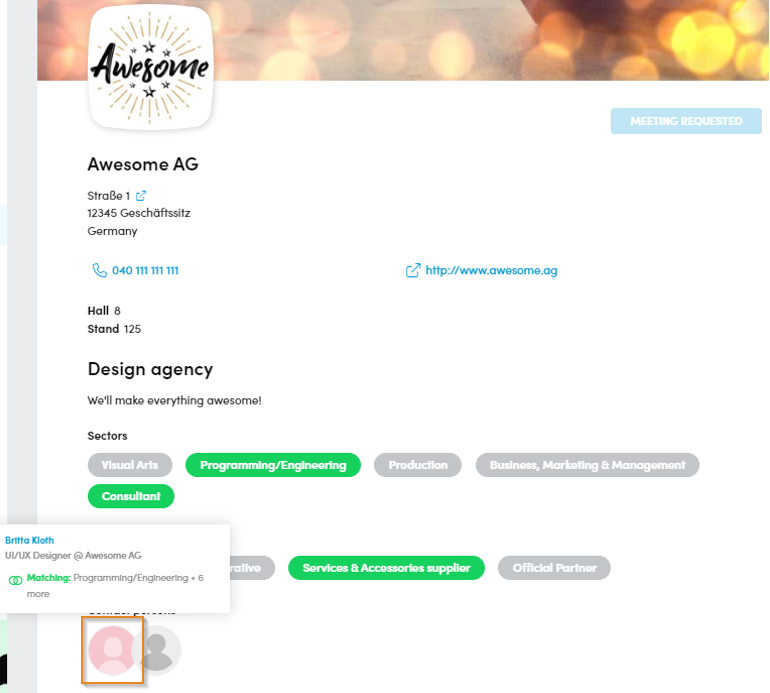
- On the Company Profile, scroll over then click, on the Contact Person to open their person’s profile.
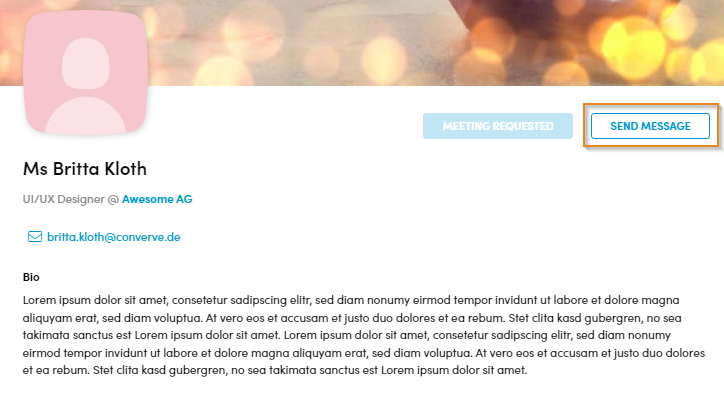
- On the Person’s Profile, click Send A Message to open a Message Form.
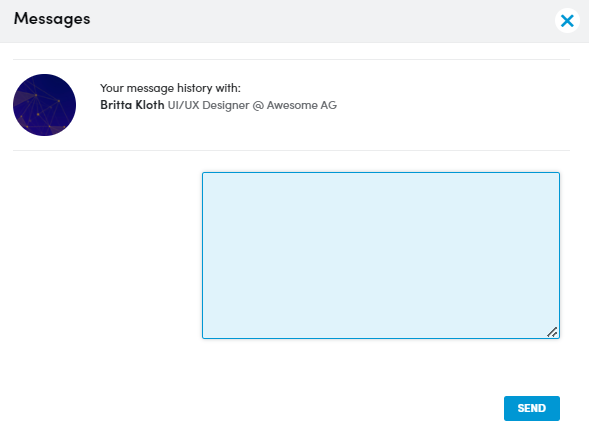
- Complete the Message Form, then click Send.
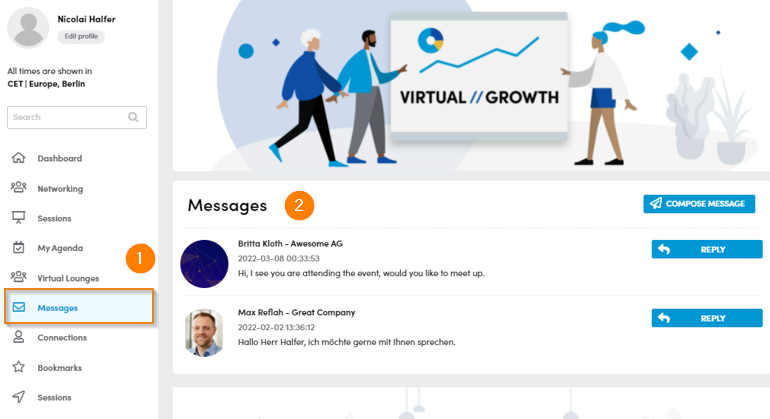
- To view, send, reply or manage incoming and outgoing messages, click Messages from the Dashboard menu.