
Block Timeslots
If a participant is unable to attend one-on-one appointments on a certain day or at a specific time, Event Admin may block one or several individual timeslots on the meeting schedule. No meetings will be scheduled within the blocked time slots.
Admin Backend Access: Attendee Management -> Registrations-> Sub Profiles-> Edit Schedule
Steps to Block meeting timeslots as an Event Admin:
-
Go to Attendee Management → Registrations
-
Click Sub Profiles to display Person Profile(s)
-
Click the Edit Schedule icon underneath the person whose schedule you want to block.
This will open My Agenda for the delegate. -
Navigate to the correct Day and Timeslot
-
Click Block Timeslot on one or several individual timeslots to block the appropriate portion of the meeting schedule.
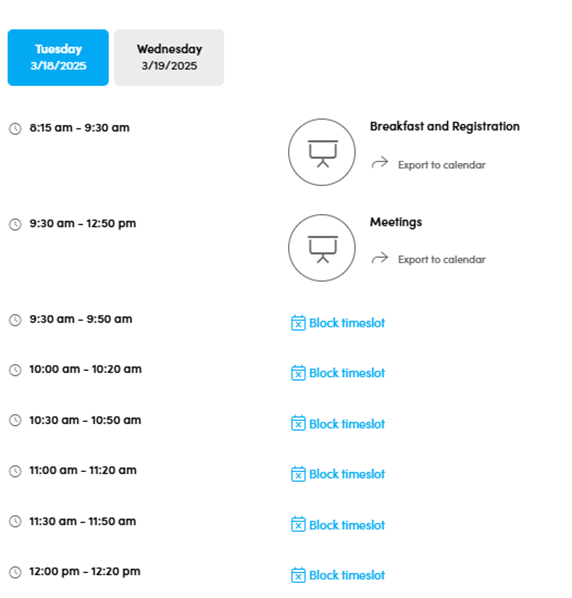
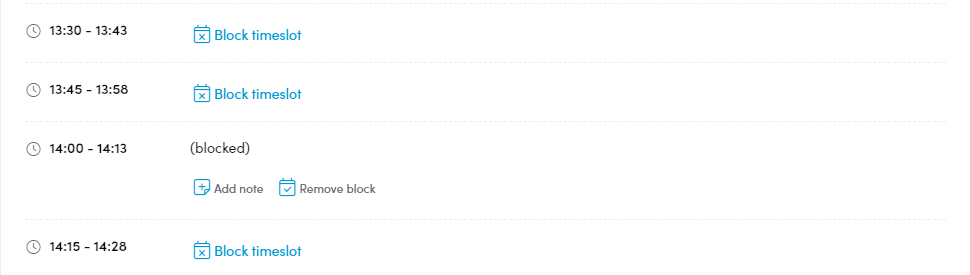
6. When blocked click Remove block to make a slot free again.
7. Once a timeslot is blocked you can click on Add Note to add a notification for example about why the slot was blocked. This note is only available to Event Admin and the owner of the schedule.
Event Admin may also enable users to block timeslots on their own, directly from My Agenda. See configuration Event-Settings-> Event Configuration -> Meetings -> Option to Block Timeslots (true/false). This is set to “true” by default.
For the user it works the same way in “My Agenda” as it does for the Event Admin in the schedule in the backend.